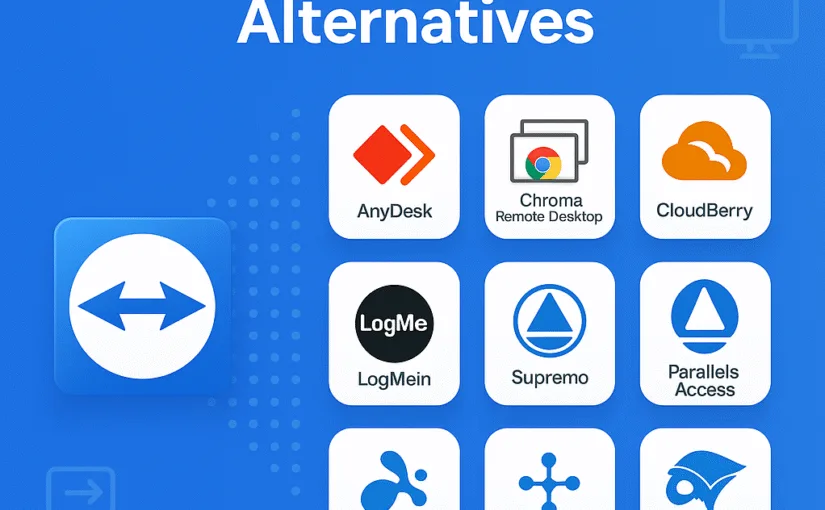
In this article, we are going to explain our viewpoint on the 9 Teamviewer alternative. As a matter of fact, the team viewer is the remote management, and remote software solution. Furthermore, when we are talking about remote management then Teamviewer is the best, and other alternatives may lack in some fields. However, many companies charge high prices for remote management and access to other computers.
Finally, we will try to share a maximum list of free 9 Teamviewer alternatives. Teamviewer is a very useful application with comes with lots of helpful functions such as – chats, control another device, attend meetings, access devices, access contacts, grant easy permissions, file transfer, remote access, desktop sharing, web conferencing, online meetings and lots of other important features, and functions. Many business meetings are also conducted by team viewer because of its safety and security provided by them.
Glimpses on Teamviewer
Apart from this, there are more than thousands of applications that are already in the market to provide remote control management. Other applications also provide similar facilities. Here we are having the list of 9 Teamviewer alternatives for windows as well as Linux software.
However, we will surely mention the pros, cons, and features of each alternative we provide. In the year 2016, there were lots of conflicts on team viewers due to which the users of the applications started searching for the alternative.
Furthermore, many users reported hacking, licking data, and deduction of extra payments taken by users from the Teamviewer. In spite of many complaints by the users the company did not help them, rather working on the shortcoming factors such as – tighten security, and finding hackings reasons.
Though the Teamviewer is a very useful application with lots of helpful, and important facilities. Now let’s start our content on 9 Teamviewer alternatives.
1. CloudBerry Remote Assistant – Best For Individuals –
Features –
As we know that TeamViewer has an established market and large user base. Moreover, TeamViewer is running in the market for the longest time. In spite of that, many users facing lots of issues, at first no one believes, but then people realized that they actually need an alternative of the application. As a matter of fact, we are sharing 9 Teamviewer alternatives, and in our deep research and analysis, our first alternative of Teamviewer is cloudberry remote assistant. Furthermore, after the recent update of the cloudberry remote assistant application, it introduced the RSA algorithm i.e according to the update the user will be secured digitally and protected by SSL encryption.
pros –
- Comfortable, and amazing packages
- Protected by SSL encryption
- Free remote access
- Easy controls and features
- Quick support system
- Easy file transfer
- Unattended Access
- Free tool for text and voice chats, and communications
Cons –
- Other region authentication Problems {sometimes}
- Only available for windows, mac, and ios
- Not available for Linux
Finally, cloudberry remote assistance is a good alternative of Teamviewer, and the popularity of this application is increasing day by day. Moreover, we know that it is a free application i.e it provides free services and comes with an amazing package. Importantly, cloudberry is going to take a competitive market in the field of remote control assistance.
2. AnyDesk
Features –
When we talk about remote management assistance, then AnyDesk is the first application that popup in our mind. Definitely, AnyDesk is available in smartphones, windows, MacBook, tablets, etc. Furthermore, it also runs on Linux which is one of the best parts for Linux users. This application also packed up with tons of benefits, and helpful features just like team viewer. It is a completely free app for personal i.e. individuals, but when you use it for business purposes then you will need to pay some nominal price to them. This application is also famous for reliable, secure, and safe use, which means that your privacy will be secured by them. AnyDesk is also famous for fast data transfer which is 60 FPS.
pros –
- Lightweight
- Free applications for personal use {paid for business}
- Fastest data transfer
- Makes online meetings easier and safe
- Record your session
- Secured from unauthorized access
- Flexible to use
cons –
- Drawing on the screen not allowed
- High prices for licensing and business use
- Phone application does not allow access to another device
3. LogMeIn
In our list of 9 Teamviewer alternatives, our next list is LogMeIn. As a matter of fact, LogMeIn in easy to use, simple, reliable remote access management. However, this application only comes with the professional version i.e. free version of LogMeIn is not available. Furthermore, Most business persons may prefer this. Furthermore, free trial of LogMeIn is easily available just you need to fill up the credit card details and you can avail the free trial. As a matter of fact, LogMeIn is the #1 remote access management tool in this niche.
This application can easily be run with both desktops as well as mobile. Moreover, LogMeIn allows sharing files in the fastest speed, time and data saving, work from any network connections, etc. As well as that, the support system of LogMeIn remote desktop control is also one of the major advantages. Unquestionably, It can be a good option for those who are searching for premium applications with simple, easy to use, and reliable features.
PROS –
- Time and cost savings
- Reliable, simple, and easy to use
- Can be operated from anywhere, anytime
- Unlimited users extend
- Seamless remote controls
- Easy printing options available
- Multi-monitor display
- Free trial available
- HD display remote access
- No risk, It’s complete secured
- Drag and drop file transfer
CONS –
- The free version is not available
- High pricing
- Not suitable for personal use
- The chat feature can be improved.
4. Splashtop
Features –
Undoubtedly, Splashtop is one of the best remote control access management software for businesses as well as individuals. It is the premium application available for windows as well as ios. Furthermore, it comes with a pricing policy of 5 dollars per month for business access solo. It comes in 8.25 dollars per month for business access pro. However, this is the price when you purchase it on a yearly basis.
PROS –
- All in one solution
- File transfer
- Easy remote access
- Available for Windows, Mac, iOS, Android, Chromebook, & more
- Audio access
- Share desktop via link
- Chat support
CONS –
- Free version not available
- High CPU usage
5. Parallels Access
FEATURES –
Without a doubt, Parallels Access remote access provides the fast, simple, and most reliable service and support which can be accessed anywhere, and anytime. One of the great advantages of the application is you are getting all the features at one place such as – file transfer, data transfer, chat, audio, etc. the 24/7 support service helps you anytime you need. Undoubtedly, The best part of the application is that you can attend the session on your own mobile phones too.
PROS –
- Fastest remote access
- Simple and reliable use
- Mobile viewing available
- No connection drop issues
- 24/7 support available
CONS –
- Only works as accessing device
6. Supremo
A powerful application in the field of remote access management. supremo comes with lots of useful features such as – easy to use, lightweight application, no data configuration, attach business proof, at last, its available in affordable pricing. One of the great advantages of this application is that it allows proper design and customization for business users such as – customization of logo, design, etc.
PROS –
- AES 256-bit encryption
- Easy customization for business
- Set up business logo
- Interface customization
- Simple, and reliable
- Lightweight and easy to use
- Affordable pricings
- No configuration required
CONS –
- Voice chat support not available
- Not supported on mac os
7. Goverlan Reach
FEATURES –
Moreover, If you are searching for an application to perform business solutions for accessing other devices, managing other systems tasks, streamline, etc. Goverlan Reach is basically designed for simple and easy use, advanced remote management services, IT automation, IT reporting, global configurations, patch management, background system management, etc.
PROS –
- Easy free trial available
- You can schedule a free demo
- Acess other devices securely
- Multi-screen monitor
- Fast connect
- File transfer
- screen capture
- Audio chat available
- Centralized auditing
CONS –
- High pricing
- Not suitable for beginners
8. Chrome Remote Desktop
FEATURES –
As a matter of fact, chrome remote desktop is an extension that is easily available in the chrome extensions. Moreover, it is the perfect remote access management that provides light usage just with the help of the extension. One of the best parts of the application is that it is free to use application which makes it attractive to use.
PROS –
- End to End encryptions
- Used in mac, windows, and Linux
- Fully secured
- Easy to operate
CONS –
- Only used with the help of chrome browser
- Bugs problems
- Lots of zooming in and out
- Not suitable for business purposes
- Does not work when pc goes on sleep mode
9. Connectwise Control
FEATURES –
Without a doubt, ConnectWise Control is a premium application that also allows free trial facilities i.e. you can use their premium application for a few days and you will not be charged for it. In addition, there are few important features of Connectwise control which actually helps to establish remote control access such as – affordable prices, 256-bit encryption, integration of third party application, etc.
PROS –
- 256-bit encryption
- Affordable prices
- Integration of third party application
- Quick and secure connection
- 24/7 support
- Marketplace extension
- Free trial
CONS –
- Not supported in ios
- Only for business
- Not suitable for individuals
CONCLUSION –
It was our deep analysis on 9 TeamViewer alternatives where we have selected simple, and reliable alternatives for TeamViewer. Furthermore, we have listed the top 9 application which is – CloudBerry Remote Assistant, -AnyDesk LogMein, Goverlan Reach, connectwise control, chrome remote access, supremo, parallel access, and Splashtop. Hope our content 9 Teamviewer alternatives was useful for you. Thank you.